The Fornax Science Console offers both private and shared data storage options. Users are also welcome to “bring your own storage”. Basic specifications and usage tips are described below.
Private Storage
To cover a range of use cases, Fornax offers three options for private storage. They are summarized in the table below, with more detail in the sections that follow.
Overview of private storage options
Storage Type | Max Size | Duration | Filesystem | Typical Use Case |
|---|---|---|---|---|
200 GB | any | POSIX (standard Unix) | most daily needs | |
limited only by user’s credits | any | mounted AWS S3 bucket | long-term storage, especially for large data | |
3 TB | up to 90 days | POSIX (standard Unix) | short-term working space for large data |
For the cost (in credits) of each option, see Fornax User Resource Allotments and Costs.
Home Directory
The user’s home directory (~/) is private and intended for most data storage use cases, including notebook, code, and data files.
It uses a standard Unix filesystem (POSIX).
By default, the home directory has a 200 GB limit. To request an increase, please contact the Helpdesk.
S3 Bucket
All users have access to a private AWS S3 bucket, which is mounted into the home directory at ~/s3-storage.
It is best suited for infrequently accessed data, such as archival storage of pipeline outputs (catalogs, spectra, images, etc.) needed for reproducibility.
There is no limit on the amount of data a user can store here, other than their own credit allotment.
Data stored here are not backed up, but AWS guarantees very high reliability (>>99%). Users can expect that data stored here will be available. But once the user deletes the data, it is non-recoverable.
Please be aware that ~/s3-storage doesn’t behave exactly like a traditional filesystem.
In particular, it is inefficient for repeated access of many small files.
When storing multiple files, consider using tar to collect them into a single file before saving to ~/s3-storage.
Temporary Scratch Space
The directory ~/scratch is private and uses a standard Unix filesystem (POSIX).
It’s intended as a working area for large data in cases where your S3 storage isn’t performant enough, and your home directory is too small.
For example, if your analysis writes many files and you find that writing to S3 is too slow, write to ~/scratch and then move the data you want to keep long-term over to S3 after your analysis is complete.
This storage is not backed up. The storage system is highly reliable and should not lose data due to system error, but cannot protect against user error. Lost data are not recoverable.
By default, ~/scratch exists but is limited to 1 GB.
You can expand it up to 3 TB for a maximum of 90 days at a time.
To manage this space, go to the Dashboard and click Storage → Scratch.
Details are in the drop-down below.
How to manage scratch storage space
On the Dashboard, click Storage → Scratch to get to the Scratch Storage management page.
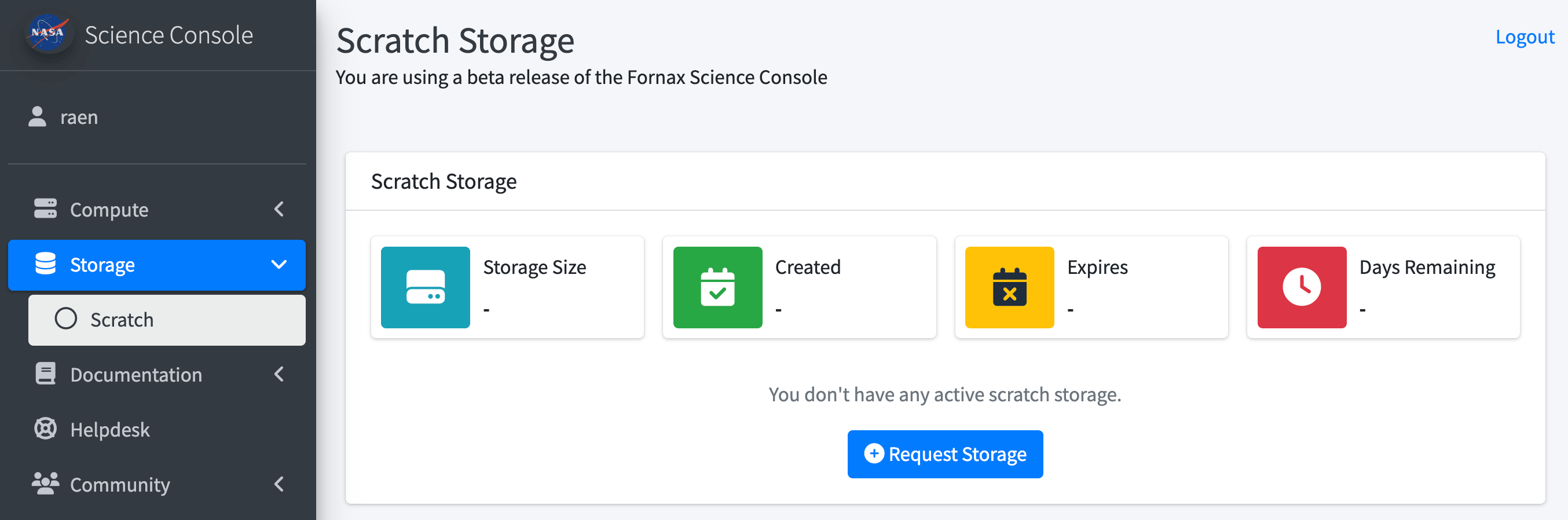
Scratch Storage Dashboard page with a button to request storage
- Create scratch space (expand beyond the default 1 GB)
Go to the Scratch Storage Dashboard page and complete the following steps. The only limit on how many times you can do this is the number of credits you have available.
Click
Request Storage.Choose a size between 500 GB and 3 TB. (You will be able to increase this later.)
Choose an expiration date of up to 60 days in the future. (You will be able to increase or decrease this later.)
The total charge in credits will be displayed, along with the number of credits you currently have. Be sure to leave yourself enough credits to run servers and anything else you want to do.
Click
Submit Request. If you have enough credits to cover the total, your scratch space will be expanded. This can take a few minutes. When it’s complete, you’ll receive a message via the Forum, and your Dashboard page will look similar to the screenshot below.
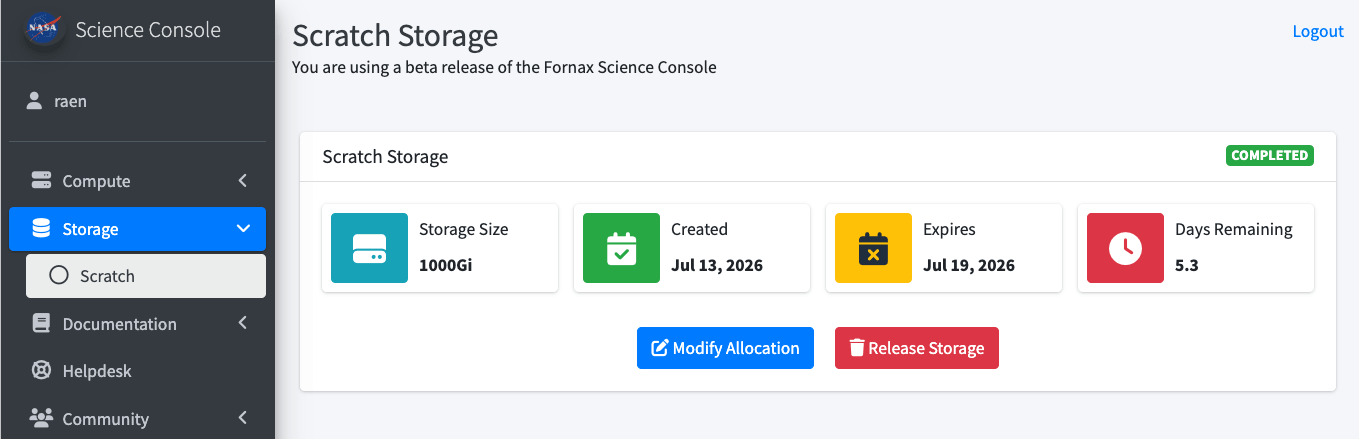
Scratch Storage Dashboard page after space has been created
- Access scratch space
Start a server session and navigate to the
~/scratchdirectory. For example, you can click on it in the File Browser or open a terminal and entercd ~/scratch.- Change scratch size or expiration date
Go to the Scratch Storage Dashboard page and click
Modify Allocation. From there you will be able to:Increase the storage size up to a maximum of 3 TB. (Can’t decrease the size.)
Increase or decrease the expiration date. It can be increased to up to 90 days total from the date it was initially expanded.
- Release (delete) scratch space
Release the scratch space as soon as you’re done with it so your credits stop being charged. First, shut down your server. Then go to the Scratch Storage Dashboard page and click
Release Storage. You will be asked to confirm.When the space is released, all files in
~/scratchwill be permanently deleted and the directory will be resized back to 1 GB. The process can take up to 20 minutes or more to complete. You will receive a message via the Forum when it’s done.If you don’t manually release the space, it will be automatically released on the expiration date you chose when creating or updating the space.
Shared Storage
The directory ~/shared-storage is a shared area that is visible to every Fornax user.
It uses a standard Unix filesystem (POSIX).
Users wishing to share data or code with collaborators should make a new directory called ~/shared-storage/users/$USER (where $USER is their username) and save the files there.
Bring Your Own Storage
Users are also welcome to “bring your own storage”. This can be anything that is accessible through an API. Examples include Google Drive, Box, AWS S3 buckets, and Google Cloud Storage buckets.